
Dashboard
After successfully signing up and logging into Octopus, you will be welcomed by the homepage.
The Dashboard is the central control screen that allows you to view the status of registered screens, content schedules, and overall operational data at a glance. Through this panel, users can monitor the overall health of the screen network, track content plans via the calendar, and quickly access key management tools.
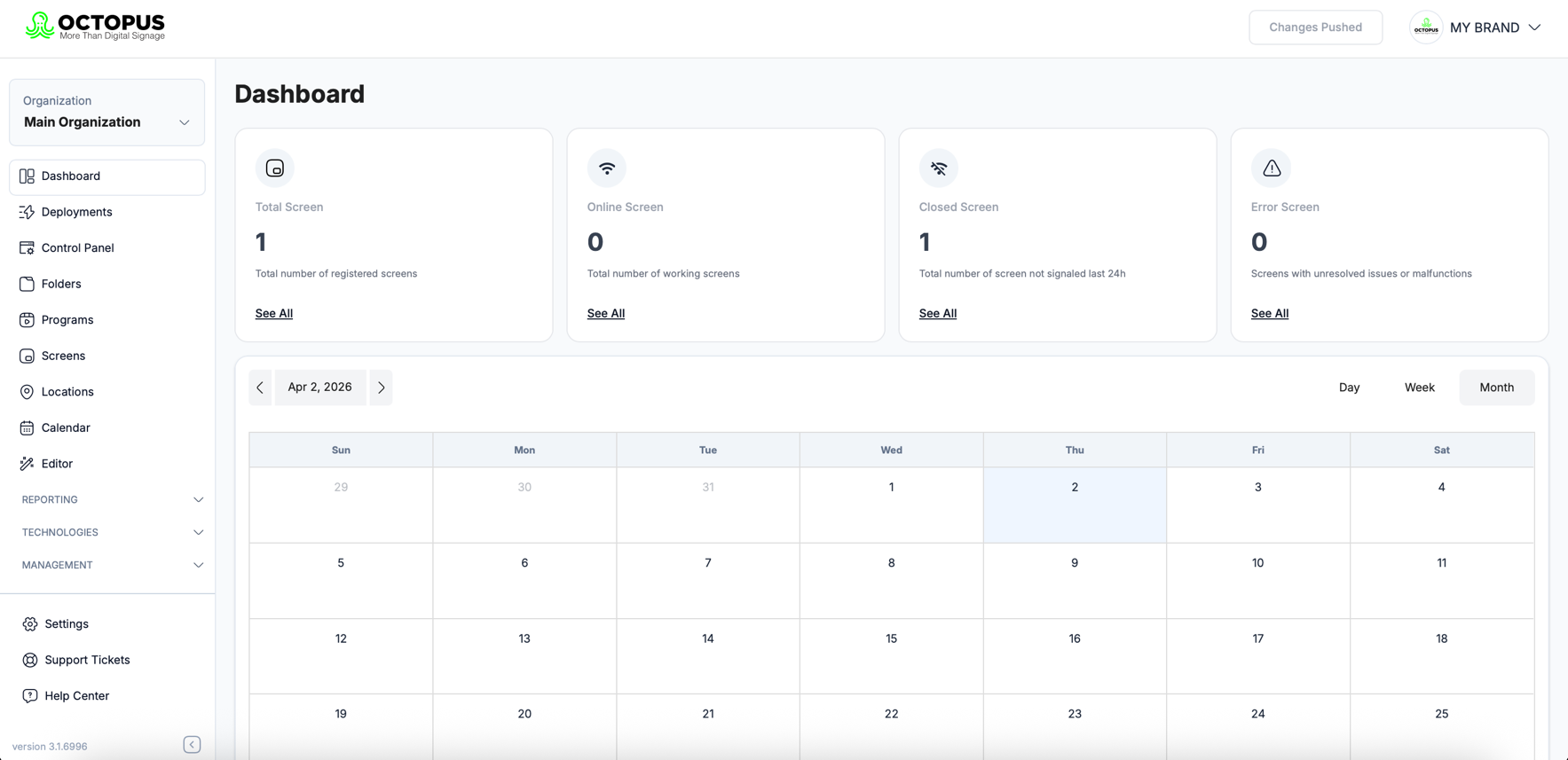
Total Number of Screens
- Displays the total number of screens registered in the system.
- Allows you to quickly see how many screens are connected to Octopus CMS within your organization.
Active Screens
- Shows the number of screens that are currently online and playing content.
- Helps you monitor operational continuity by tracking screen connectivity.
Offline Screens
- Displays screens that have not sent a signal or have lost connection within the last 24 hours.
- Enables quick identification of screens that may require technical intervention.
ErrorScreens
- Lists screens where errors or malfunctions have been detected by the system.
- Allows technical teams to respond quickly to problematic devices.
Calendar View
- Provides a date-based view of content scheduling.
- Enables easy tracking of scheduled content on a daily, weekly, or monthly basis.
Organization Management
- The organization selector located at the top-left allows quick switching between different organizations.
- Simplifies management for multi-location or multi-brand structures.
Quick Menu
- Deployments: Sending content to screens and managing broadcasts
- Dashboard: Live monitoring of screen statuses
- Folders: Organizing media and content archives
- Programs: Planning content playback schedules
- Screens: Managing connected screens
- Locations: Managing screen locations
- Calendar: Time-based scheduling
- Editor: Tools for designing and editing content
From the bottom section of the panel, users can:
- Access system settings
- Create support requests
- Reach the help center