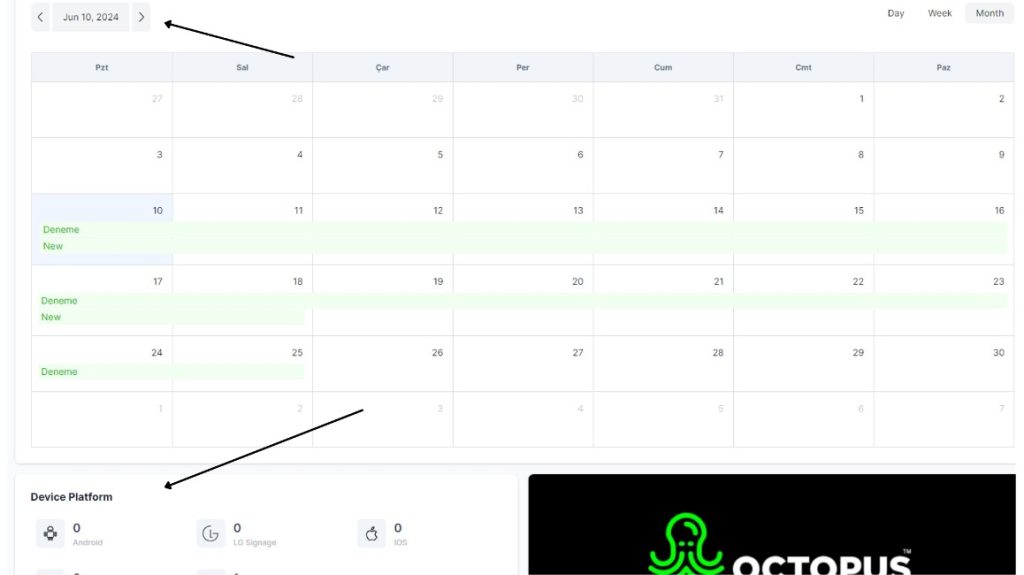
When you successfully register and log into Octopus, you will be greeted by the starting page.
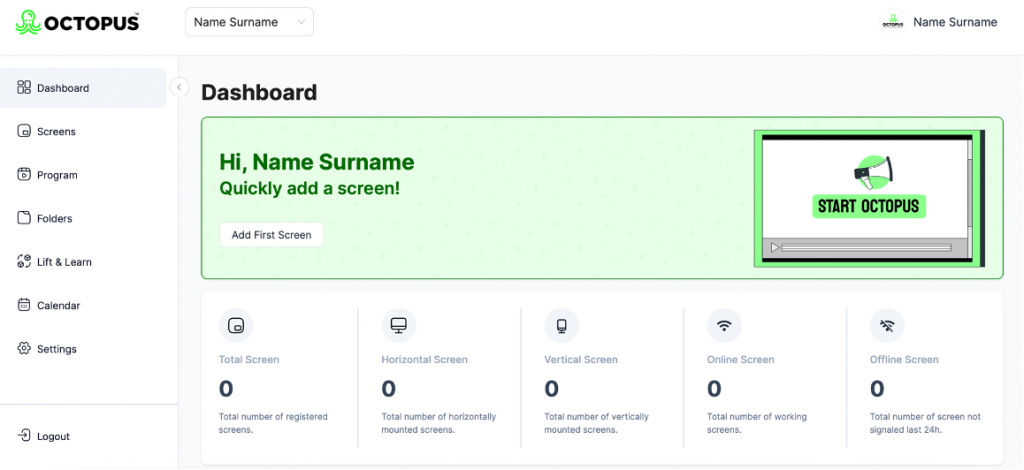
The Dashboard is the central control screen that allows you to view the status of registered screens in the system, content schedules, and general operational data at a single glance. Users can monitor the overall health of the screen network, track content plans via the calendar, and quickly access the necessary management tools through this panel.
Total Number of Screens
- Shows the total number of all screens registered in the system.1
- This area allows you to quickly view how many screens are connected to Octopus CMS in your organization.
Active Screens
- Shows the number of screens currently active and playing content in the system.
- You can monitor operational continuity by tracking the online status of the screens.
Inactive Screens
- Shows screens from which no signal has been received or whose connection has been lost in the last 24 hours.1
- This area makes it possible to quickly identify screens requiring technical intervention.
Faulty Screens
- Lists screens for which an error or fault has been detected by the system.
- This allows technical teams to quickly intervene on problematic devices.
Calendar View
- Provides date-based viewing of content schedules.
- Scheduled content can be easily tracked by day, week, or month.
Organization Management
- Allows for quick switching between different organizations through the organization selection located in the upper left section.
- Simplifies management in multi-location or multi-brand structures.
Quick Menu
- Distributions: Sending content to screens and broadcast management
- Control Panel: Live status tracking of screens
- Folders: Organization of the media and content archive
- Programs: Planning of content broadcast streams
- Screens: Management of screens connected to the system
- Locations: Management of the locations where the screens are situated
- Calendar: Time-based broadcast scheduling
- Editor: Content design and editing tools
From the bottom of the panel, users can:
- Access system settings,
- Create support requests,
- Reach the help center