
When you create your program, you should also add the “scenes” that will be part of that program.
You can do this by clicking on the program name in the Program menu.
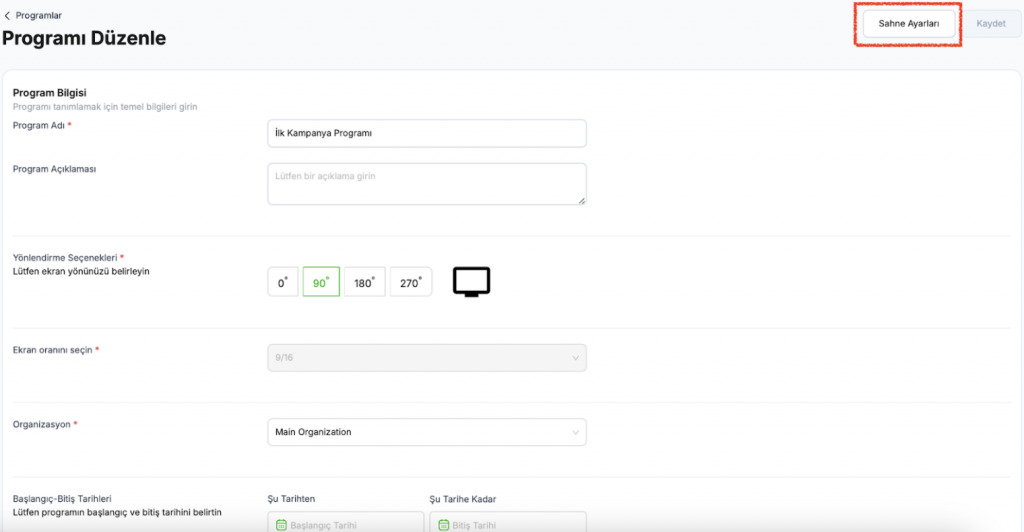
Scene Settings
• When you create a program, you must also add the “scenes” that will be part of that program.
• You can do this by clicking on your program name in the Program menu.
• When you click on your program, the following page will open.
• Then proceed to the scene settings.
On the “Scene Settings” page, you can add one or more folders containing the content you want to broadcast to your program by clicking the “Add New Scene” button in the upper-left corner.
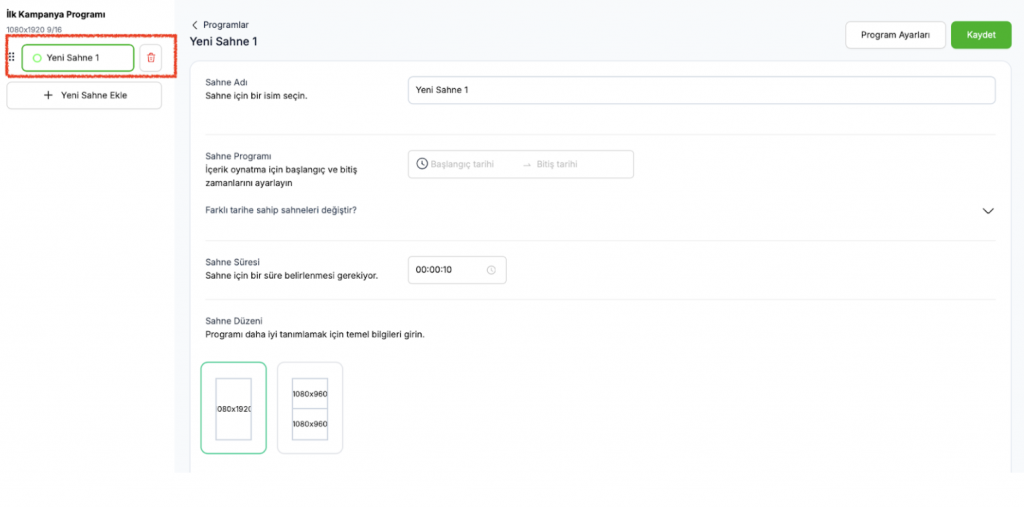
To add a Scene to your program:
• Give your new scene a name.
• Set how long the scene will be broadcast.
• You can then create the Scene Layout. By exploring options such as broadcasting the entire screen, splitting the screen in half, or displaying subtitles via HTML, you can create a scene tailored to your preferences.
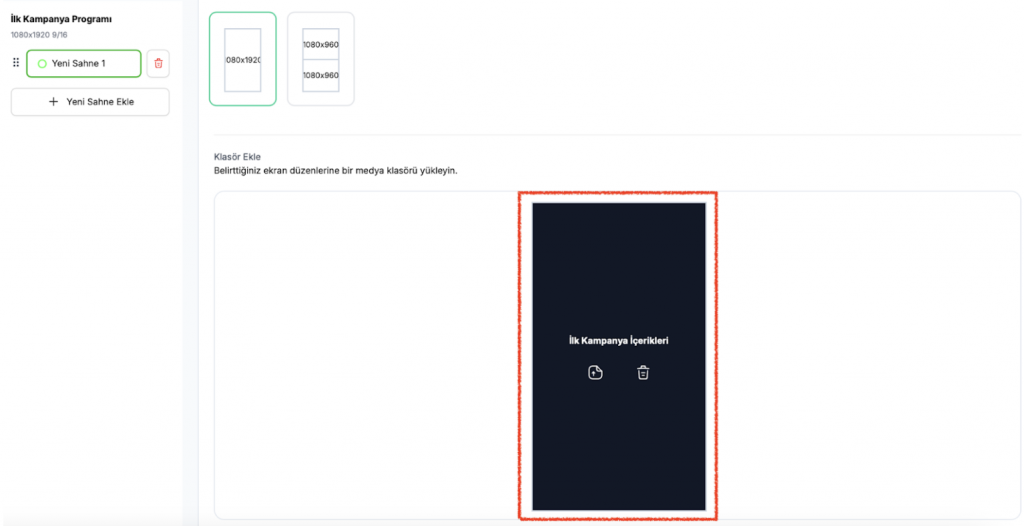
• After selecting the Scene Layout, choose the folder you want to include in the scene.
When you click the “Save” button in the top-right corner, your scene will be created.
You can create as many scenes as you like.


