
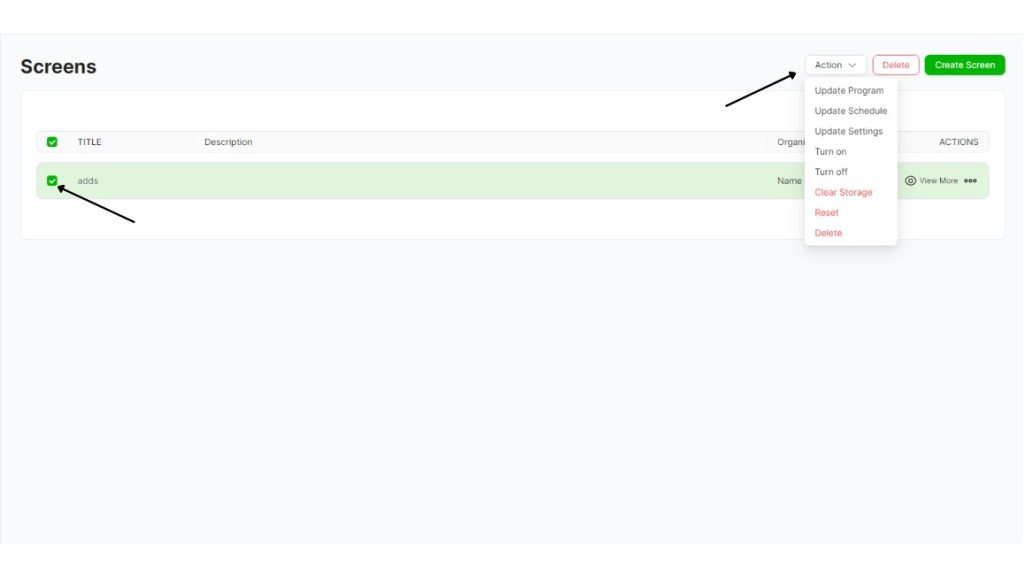
After creating your screen, you can return to the screen menu, check the box next to your screen, and click the “Actions” button.
With this button, you can do the following:
Update Program: This button updates the program you selected when creating your screen (if applicable).
You can use this button to update changes made to the program related to your screen.
Update Settings: If you’ve made any changes in the Settings menu, you must click this button to update the settings.
Update Software: Updates the software installed on the screen to the latest version.
Open: You can open this screen using this button even if you don’t have a scheduled program for it.
Close: You can close this screen using this button even if you have a scheduled program for it.
Restart: Closes and reopens the screen.
Report:
Clear Storage: This button will clear unused data from all your apps.
Reset: This button will reset all changes you’ve made in the app.
Delete Button on the Left: This button deletes the selected screen.
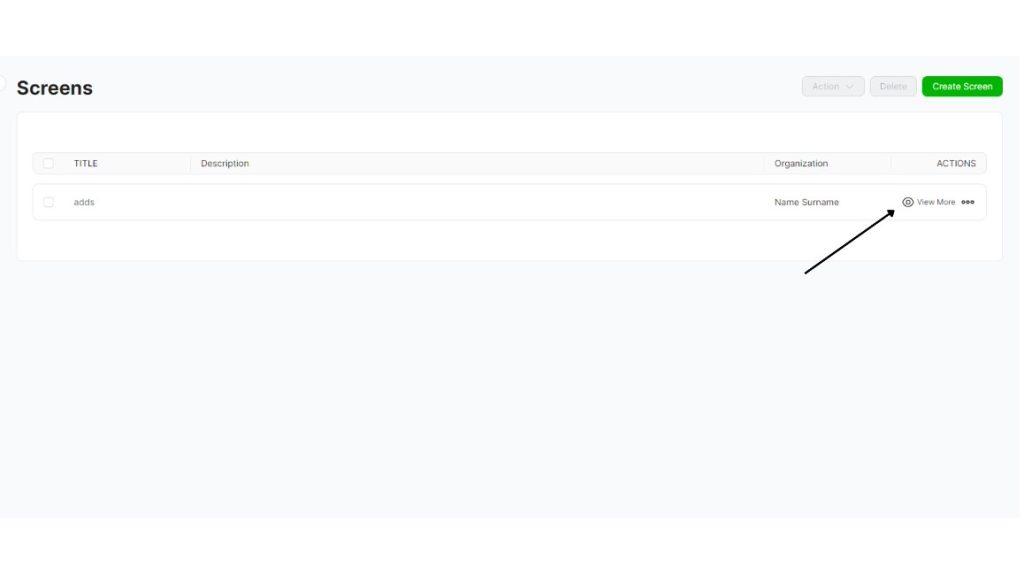
Return to the Screens menu to select the screen you want to update or delete.
• On this page, you can update all information related to the screen.
• If you want to delete the screen, click the button in the upper-right corner.


