
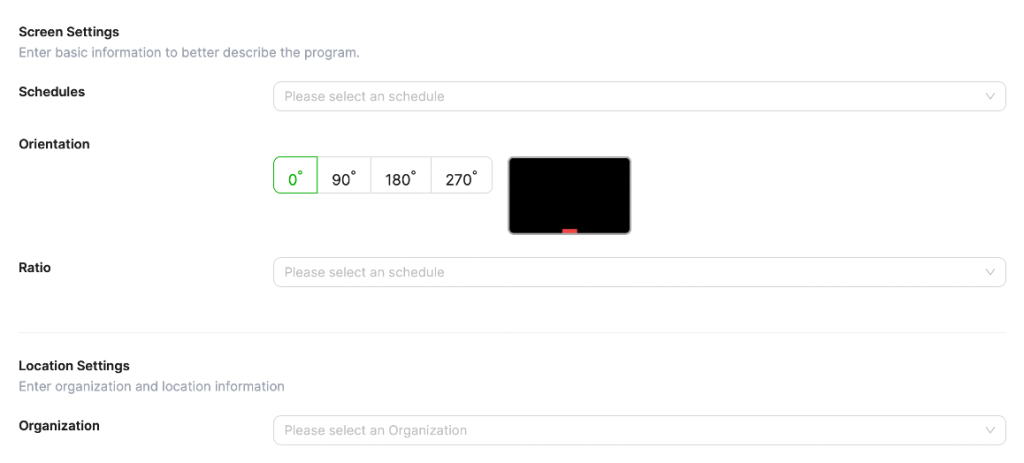
- Select the operating hours for which you want the screen to be displayed.
- Select the device orientation as landscape, portrait, 90 degrees clockwise, or 90 degrees counterclockwise.
- Next, select the “Organization” that will manage the screen and the “Location” where the screen is located. If the location information has not been created yet, you must select the location where the screen will be placed using the “Create Location” button.
- f you plan to use your screens as a video wall, synchronization must be enabled. In this step, you must specify which screen will be the main screen and which will be the subordinate screen linked to it.
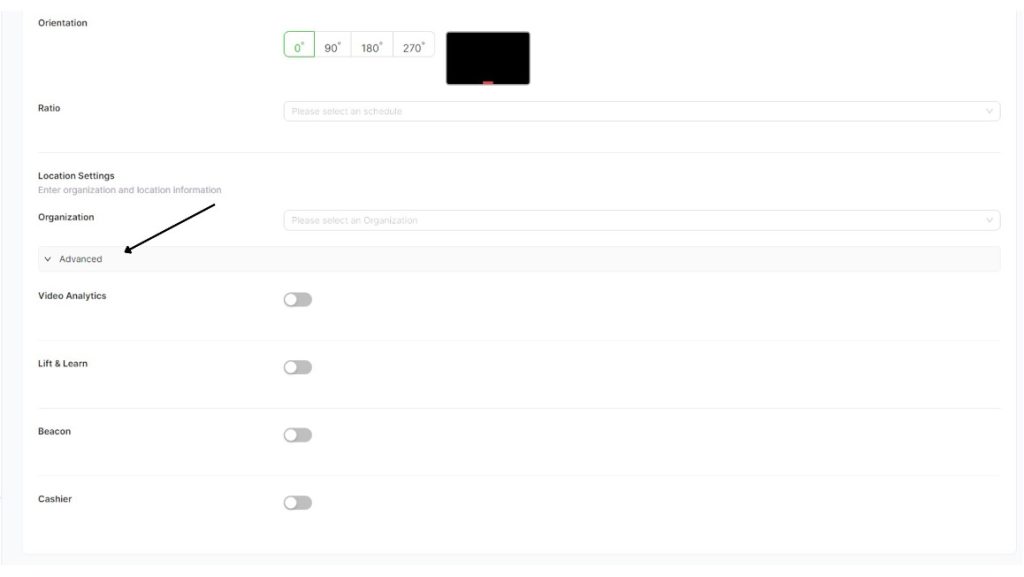
Finally, if you want to configure advanced settings for Video Analytics, Touch & Learn, and POS Integration, you can select these settings for your screen.
When you click the “Save” button, your screen will be saved.


