
On TVs, displays and boxes that run Android TV or Google TV, you install Octopus from its APK file. For Android tablets and players, see Installing Octopus on Android.
Before you start
- A device with Android TV or Google TV, Android 5.1 or later and an ARM processor.
- An internet connection on the device.
- The Octopus APK address:
https://getocto.net/an. The downloaded file is namedrelease.apk. - The Octopus MDM address:
https://octoservice.net/storage/android/mdm-release.apk. - A download app on the TV, or a USB drive and a file manager on the TV. You can install both apps from Google Play on the TV.
Note: Samsung and LG displays do not run Android. For them, see Installing Octopus on Samsung Tizen 7 and Installing Octopus on LG webOS.
The drawings in this guide are representative. Menu names and their order can differ by brand and Android version.
1. Allow unknown sources
Android TV installs apps from outside Google Play only after you allow it for the app that opens the APK file.
- Open Settings.
- On Android TV, go to Device Preferences > Security & restrictions > Unknown sources. On Google TV, go to Apps > Security & restrictions > Unknown sources.
- Turn on the app you will open the APK with: the download app or the file manager.
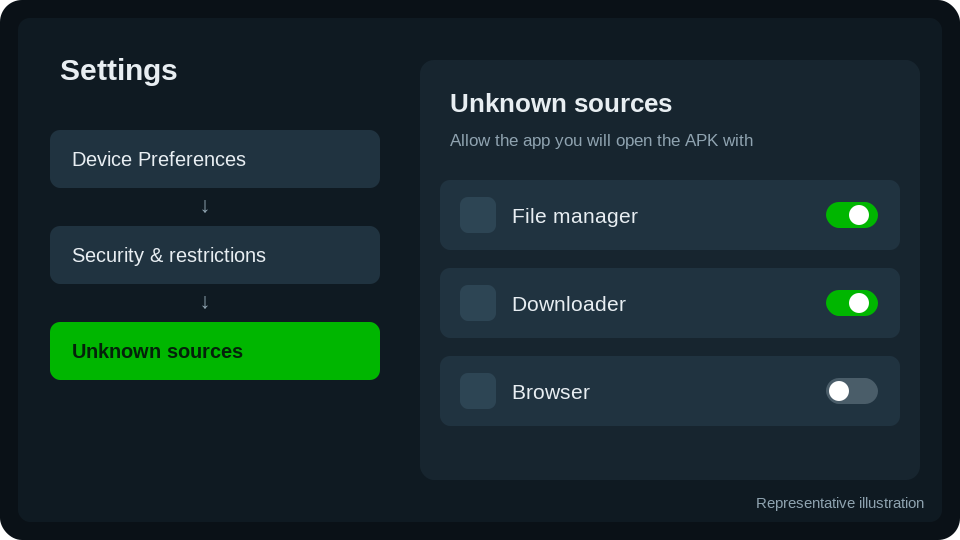
On older Android TV versions, Unknown sources is a single switch for all apps; turn it on. If you cannot find the setting on Google TV, turn on developer options first: open Settings > System > About and select Android TV OS build seven times.
2. Get the APK on the TV
With a download app
- On the TV, install a download app from Google Play, such as Downloader, and allow it in step 1.
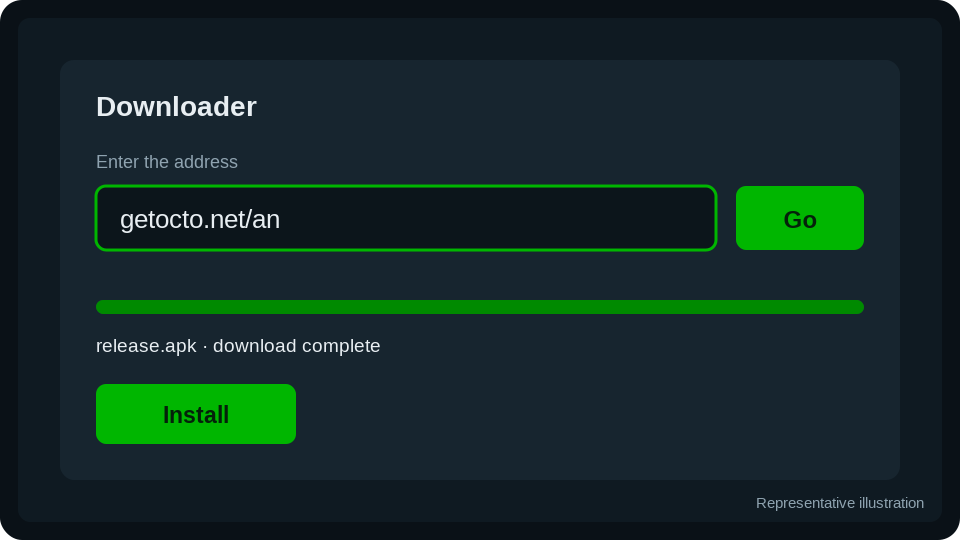
- Open the app, enter
getocto.net/anand start the download. - When the download is complete, select Install and continue with step 3 on the confirmation screen. If the app has no install button, open
release.apkfrom the Download folder with a file manager.
With a USB drive
- On a computer, download the APK from
https://getocto.net/an. - Copy the file
release.apkto a USB drive formatted as FAT32 or exFAT. - Plug the USB drive into the TV or box.
3. Install Octopus
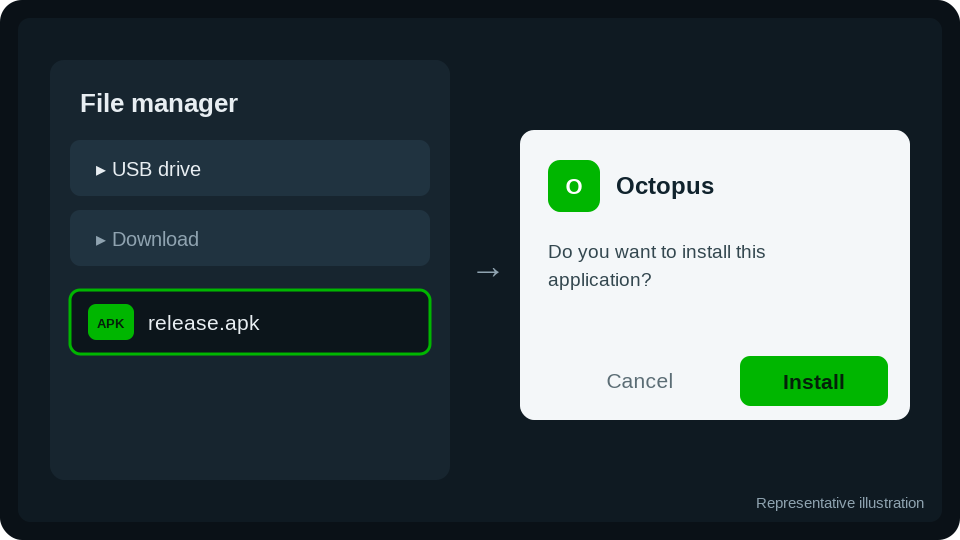
- Open the file manager on the TV and go to the USB drive or the Download folder.
- Select
release.apk. - On the confirmation screen, select Install. When the installation is complete, select Open.
4. Install Octopus MDM
Octopus MDM is a separate app that works alongside the Octopus player. Install it on the same device after Octopus.
- Get the MDM APK on the TV as in step 2, using the address
https://octoservice.net/storage/android/mdm-release.apk. - Install it with the file manager as in step 3. The app is named Octopus MDM.
- Open Octopus MDM and select Device Owner / On.
- On the Android screen that opens, allow Octopus MDM as a device admin app with Activate.
Remote updates from the panel work on devices where Octopus MDM is the device owner, such as rooted or enterprise-managed devices. On other TVs, update Octopus by installing the new APK again with the steps in this guide. Octopus MDM does not need the accessibility permission.
5. Pair the screen
When Octopus opens for the first time, it shows a 7-character registration code.
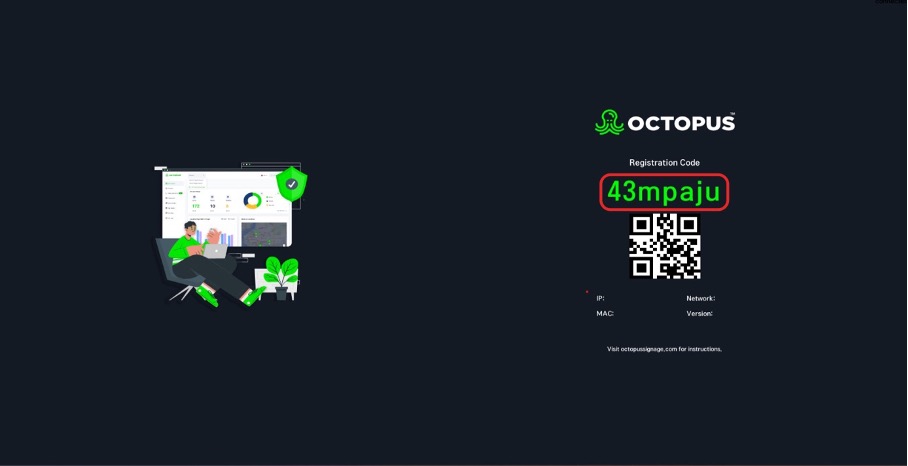
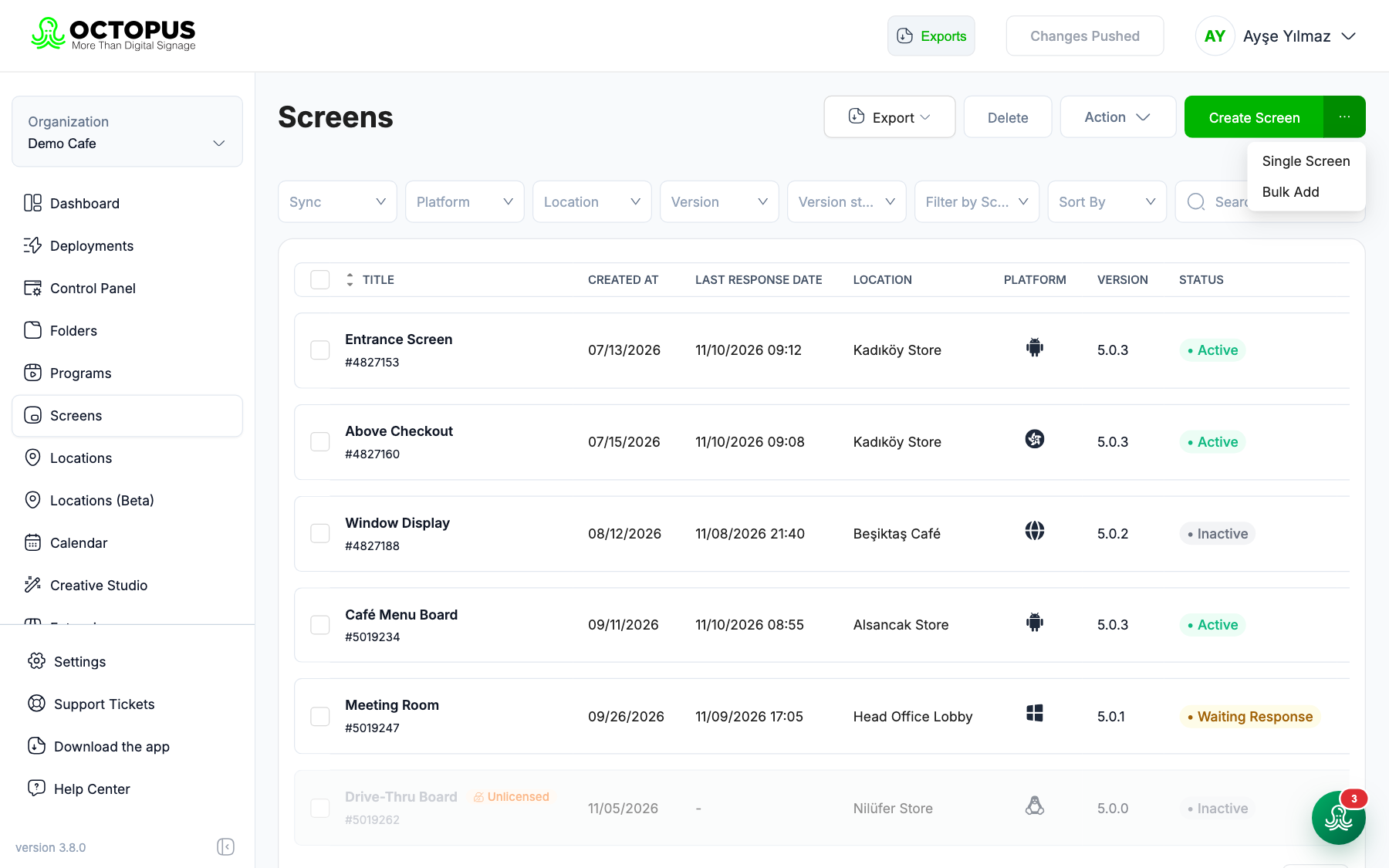
In the panel, click Screens, then Create Screen, and enter this code as the Register ID. For the other fields, see Screen Management.
Troubleshooting
- Installation is blocked: the app you opened the APK with is not allowed in Unknown sources. Allow it as in step 1 and open the file again.
- Play Protect warning: Google Play Protect can warn about apps that do not come from Google Play. If you downloaded the APK from the Octopus address above, select More details > Install anyway. Do not install Octopus APKs from other websites.
- App not installed: check that the device runs Android 5.1 or later, has an ARM processor and has enough free storage. Download the APK again in case the file is incomplete.
- Octopus is not in the app list: look in the full list of apps; on Google TV, open Apps and select See all. You can also open it by going to Settings > Apps > Octopus and selecting Open.
All download addresses, including the beta and MDM packages, are listed in Download the App and Download Links.