
Octopus supports Samsung SSSP-2 and SSSP-3 displays and runs on them as an app installed through URL Launcher (see Installing Octopus on Samsung SSSP-2). These displays have no app list to delete apps from. Instead, you remove the installed app by entering a special address in URL Launcher.
You only need the display's remote control. You can type with the on-screen keyboard or connect a USB keyboard to the display.
Note: This guide is for SSSP-2 and SSSP-3 displays only. On newer Samsung displays, URL Launcher has its own uninstall option in its settings.
When to remove the app
Remove the app in these two cases:
- You want to install Octopus from scratch. Remove the app first, then reinstall it.
- The display runs an old Octopus version and entering the address in URL Launcher again does not update it. Remove the app, then reinstall it.
Remove the app
- Press the HOME button on the remote control.
- Select Change URL at the top of the home screen.
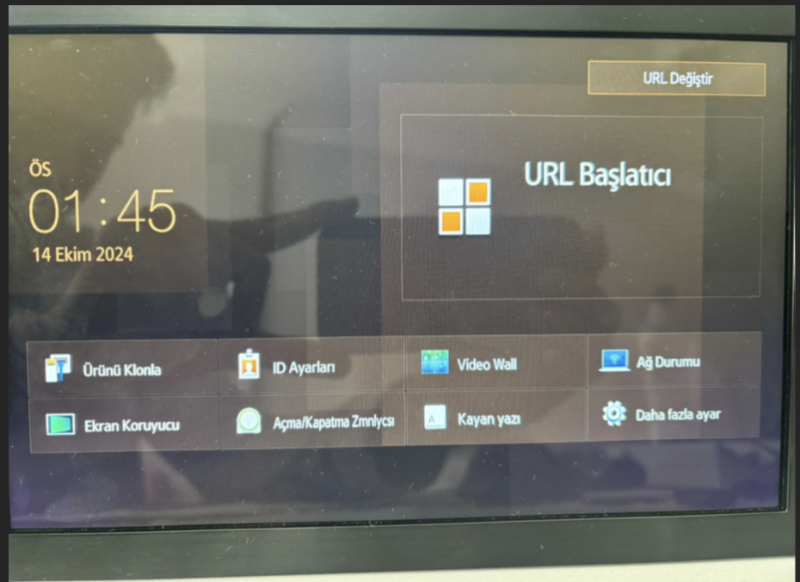
- In the address window, select Clear to empty the field, type
$DEL, then select Done.
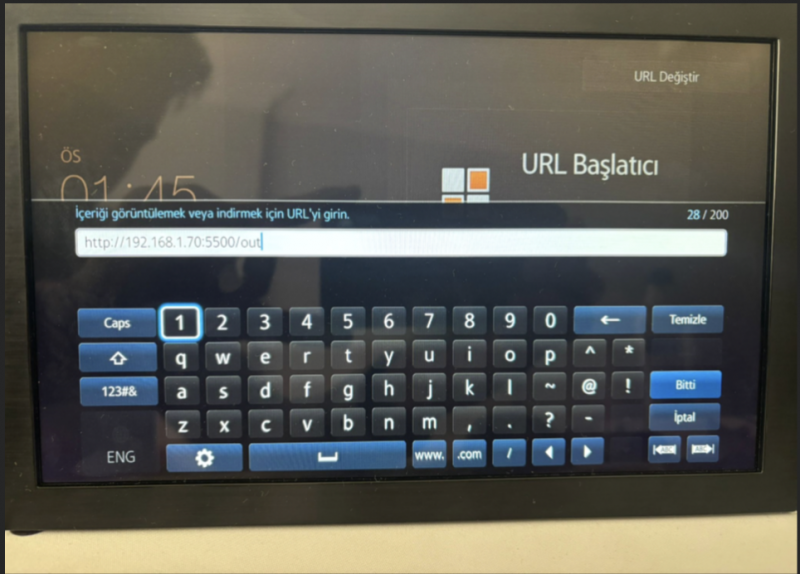
- Back on the home screen, select URL Launcher. The display removes the installed app.
The display no longer opens the app. To show another input, press Source on the remote control and choose it. To go back to MagicInfo, open Menu > System > Play via and select MagicInfo.
Reinstall Octopus
If you switched Play via to MagicInfo, first set it back to URL Launcher.
- Press HOME and select Change URL.
- In the address window, enter
https://octopussignage.com/release/sssp/in lowercase and select Done. - Select URL Launcher. Octopus is installed and opens.
For the full installation steps, see Installing Octopus on Samsung SSSP-2. The same steps apply to SSSP-3 displays.
The screen in the panel
Removing the app on the display does not delete the screen in the panel. After you reinstall, compare the code shown on the display with the Register ID of the screen on the Screens page.
- If they match, the screen continues with its existing settings.
- If the display shows a new code, you cannot change the Register ID of the existing screen. Delete the old screen and create a new one with the new code (see Screen Management), then choose its program again.